Belege rein, UStVA raus: Rechnungen aus Postfach und Kundenportalen holen mit boring MCP
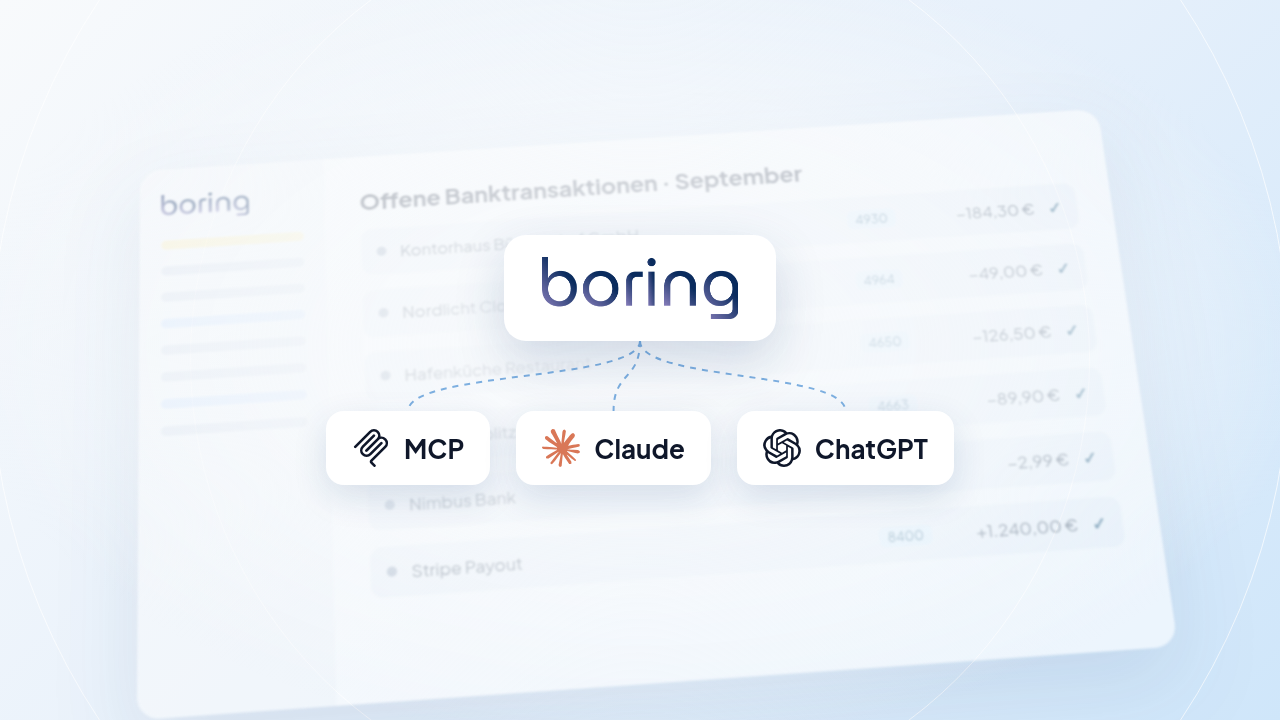
Offene Banktransaktionen, keine Belege. Und die Rechnungen? Im Postfach, im Kundenportal, irgendwo.
Jeden Monat dasselbe: Mail suchen, PDF herunterladen, im Anbieterportal einloggen, die nächste Rechnung holen, alles in die Buchhaltung hochladen, der richtigen Zahlung zuordnen, buchen. Und erst dann kann die Umsatzsteuer-Voranmeldung raus.
Mit dem boring MCP-Server sagst du deinem eigenen KI-Agenten einfach, was du brauchst:
Hol die Rechnungen für September, verknüpfe sie mit meinen Banktransaktionen und bereite die UStVA vor.
Der Agent sucht die Rechnungen in deinem Postfach, holt fehlende direkt aus dem Kundenportal des Anbieters und übergibt sie an boring.tax. boring liest Betrag, Datum und Steuersatz aus, der Agent ordnet jeden Beleg seiner Banktransaktion zu und bucht ihn mit Konto und Steuerschlüssel. Daraus wird die Voranmeldung. Freigeben und an ELSTER übermitteln machst du selbst, mit einem Klick in boring.tax.
In unserem Produkt-Update vom September haben wir boring MCP vorgestellt. Dieser Guide zeigt den Anwendungsfall Schritt für Schritt: Warum es sich lohnt, und wie du es einrichtest.
Das Video: der komplette Ablauf in gut einer Minute
Warum: ein Satz statt einer Stunde Belegsuche
1. Die Belege sind schon da. Deine Rechnungen liegen im Postfach oder im Kundenportal deiner Anbieter. Du musst keinen neuen Ablageort einrichten, keine Weiterleitungsregeln pflegen und kein weiteres Tool anbinden. Der Agent arbeitet mit dem, was du sowieso nutzt.
2. Der Agent sucht gezielt, nicht pauschal. Statt jede Mail mit Anhang in die Buchhaltung zu kippen, geht der Agent von der Lücke aus: Er fragt boring, welche Banktransaktionen noch keinen Beleg haben, und sucht genau dafür die passende Rechnung.
3. Vom Beleg bis zur Voranmeldung in einem Durchgang. Hochladen ist nur der Anfang. boring liest jede Rechnung aus, der Agent gleicht Betrag, Datum und Händler mit deinen Banktransaktionen ab, hängt den Beleg an und bucht ihn mit Konto und Steuerschlüssel, egal ob 7 %, 19 % oder steuerfrei. Anschließend legt er die Voranmeldung an und lässt alle Prüfungen laufen.
4. Du behältst die Kontrolle. Der Agent ist ein eigener Benutzer in deiner Organisation, mit einer Rolle, die du festlegst. Er kann nicht mehr, als seine Rolle erlaubt, und alles, was er tut, läuft unter seinem Namen. Findet er einen Beleg nicht, sagt er dir, was fehlt, statt zu raten. Freigabe und Übermittlung der Voranmeldung, Zahlungen und die abschließende Prüfung bleiben bei dir.
5. Deine Zugangsdaten bleiben bei dir. boring bekommt keinen Zugriff auf dein Postfach und speichert keine Zugangsdaten zu Anbieterportalen. Postfach und Browser verbindest du nur in deinem KI-Client, und der Agent fragt dich, bevor er darin sucht.
So läuft es ab: das Beispiel aus dem Video
Die Muster GmbH hat im September fünf Banktransaktionen ohne Beleg. Nach einem einzigen Prompt arbeitet der Agent sie in vier Etappen ab.
1. Rechnungen im Postfach suchen. Der Agent durchsucht das Postfach nach Rechnungen aus September mit PDF-Anhang und findet vier davon: Bürobedarf, Restaurant, Bahnticket und die Kontoabrechnung der Bank.
2. Fehlendes aus dem Kundenportal holen. Die Rechnung des Cloud-Anbieters liegt nicht im Postfach, sondern nur im Kundenportal. Der Agent öffnet das Portal im Browser, in dem die Muster GmbH bereits angemeldet ist, und lädt die September-Rechnung herunter.
3. Übergeben, auslesen, zuordnen, buchen. Der Agent lädt alle fünf PDFs in boring hoch. boring liest Betrag, Datum und Steuersatz aus. Der Agent gleicht jede Rechnung über Betrag, Datum und Händler mit den offenen Banktransaktionen ab, verknüpft sie und bucht:
| Transaktion | Betrag | Beleg aus | Buchung |
|---|---|---|---|
| Kontorhaus Bürobedarf GmbH | −184,30 € | Postfach | 4930 Bürobedarf · VSt 19 % |
| Nordlicht Cloud Services | −49,00 € | Kundenportal | 4964 Software & Lizenzen · VSt 19 % |
| Hafenküche Restaurant | −126,50 € | Postfach | 4650 Bewirtung · VSt 7 % + 19 % |
| Schienenblitz Fernverkehr | −89,90 € | Postfach | 4663 Reisekosten Fahrt · VSt 7 % |
| Nimbus Bank | −2,99 € | Postfach | 4970 Nebenkosten Geldverkehr · steuerfrei (§ 4 Nr. 8 UStG) |
4. Die Voranmeldung vorbereiten. Der Agent legt die Umsatzsteuer-Voranmeldung für September an, lässt alle Buchungsprüfungen laufen und schließt die Periode ab, sobald alles grün ist. Die Vorsteuer aus den neuen Belegen (im Beispiel 54,09 €) ist verrechnet, die Zahllast steht. Die Voranmeldung steht auf „Bereit zur Freigabe“.
Freigeben und an ELSTER übermitteln machst du dann selbst, mit einem Klick in boring.tax.
Was im Hintergrund passiert. Für jeden Schritt nutzt der Agent ein eigenes Werkzeug. Im Video siehst du sie mitlaufen:
| Etappe | Werkzeug | Was es tut |
|---|---|---|
| Postfach | E-Mail-Connector (z. B. Gmail) | Mails mit Rechnungen finden |
| Kundenportal | Browser / Computer Use deines KI-Clients | Rechnung im Portal herunterladen |
| Übergabe | boring MCP files_upload | PDFs an boring übergeben |
| Auslesen | boring MCP extraction_get | Betrag, Datum, Steuersatz prüfen |
| Abgleich | boring MCP transactions_search | Passende Banktransaktion finden |
| Verknüpfen | boring MCP transactions_files_set | Beleg an Transaktion hängen |
| Buchen | boring MCP bookings_create | Konto und Steuerschlüssel setzen |
| Voranmeldung | boring MCP filings_create, filings_check, filings_close | Anlegen, prüfen, Periode abschließen |
Einrichtung
Du brauchst drei Dinge in deinem KI-Client:
- boring MCP für den Zugriff auf deine Buchhaltung, im Rahmen der Rechte, die du dem Agenten gibst.
- Einen E-Mail-Connector (z. B. für Gmail oder Outlook) für die Suche im Postfach.
- Optional: Browser- oder Computer-Use-Funktion deines KI-Clients, damit der Agent Rechnungen aus Kundenportalen holen kann.
Schritt 1: Einen Agenten in boring anlegen
MCP-Zugriff läuft in boring immer über ein eigenes Agenten-Konto, nicht über deinen persönlichen Zugang.
- Öffne in boring.tax Integrationen und API → API & MCP. Der Bereich ist für Organisations-Admins sichtbar.
- Klicke auf Agent erstellen und gib ihm einen Namen, z. B. „Beleg-Agent“.
- Lege die Rechte fest. Für den kompletten Ablauf aus dem Video (Belege, Buchungen, Voranmeldung) reicht Buchhaltung verwenden. Wenn der Agent für Belege, die er nicht findet, Aufgaben anlegen soll, gib zusätzlich Aufgaben verwenden frei. Alles andere kannst du abwählen.
- Bestätige die Anlage. Ein Agent wird wie ein normaler Benutzer abgerechnet und erhält keine E-Mails.
Die Rechte kannst du später jederzeit unter Organisationsbenutzer ändern oder den Agenten dort entfernen.
Schritt 2: Deinen KI-Client mit boring verbinden
Die Verbindung braucht nur eine Adresse. Füge in deinem KI-Client diesen Remote-MCP-Server hinzu:
https://backend.boring.tax/api/mcp
- Claude (App und claude.ai): Einstellungen → Connectors → eigenen Connector hinzufügen, URL eintragen, auf „Verbinden“ klicken.
- ChatGPT: In den Einstellungen unter Apps & Connectors einen eigenen Connector mit der URL anlegen. Je nach Tarif musst du dafür den Entwicklermodus aktivieren.
- Claude Code, Codex und andere Entwickler-Tools:
# Claude Code – danach /mcp aufrufen und anmelden
claude mcp add --transport http boring https://backend.boring.tax/api/mcp

# Codex
codex mcp add boring --url https://backend.boring.tax/api/mcp
codex mcp login boring
Beim ersten Verbinden öffnet sich boring.tax im Browser:
- Anmelden mit deinem boring.tax-Konto.
- Organisation und Agent wählen. Du legst fest, in welcher Organisation und als welcher Agent die App arbeiten darf.
- Zugriff erlauben. Fertig – dein KI-Client ist verbunden.
Die App sieht danach nur diese eine Organisation, mit genau den Rechten des gewählten Agenten. Es gibt keinen API-Schlüssel, den du kopieren oder aufbewahren musst. Unter Integrationen und API → API & MCP → Verbundene Apps siehst du jederzeit, welche Apps verbunden sind, und kannst den Zugriff mit einem Klick widerrufen.
Verbinden können nur Organisations-Admins und -Manager. Der Agent muss vorher angelegt sein (Schritt 1).
Schritt 3: Postfach verbinden
Verbinde in deinem KI-Client einen E-Mail-Connector für dein Postfach. Welcher das ist, hängt von deinem Client und deinem Mailanbieter ab.
Wichtig ist eine Sache: Der Connector muss Anhänge als Datei auslesen können, nicht nur Betreff und Text der Mails. Nur dann kann der Agent das PDF an boring weitergeben.
Schritt 4 (optional): Kundenportale freischalten
Manche Anbieter verschicken Rechnungen nicht per Mail, sondern stellen sie nur im Kundenportal bereit. Kann dein KI-Client einen Browser bedienen (oft „Computer Use“ oder Browser-Erweiterung genannt), holt der Agent sie dort ab.
So funktioniert das sicher:
- Du meldest dich selbst an. Der Agent arbeitet in deiner bestehenden Browser-Sitzung. Ist er nicht eingeloggt, bittet er dich um Hilfe; nach deinem Passwort fragt er nie.
- boring speichert keine Portal-Zugangsdaten. Das Einloggen passiert ausschließlich zwischen dir, deinem Browser und deinem KI-Client.
- Der Agent fragt vorher. Bevor er ein Portal öffnet, sagt er dir, wo und wonach er suchen will.
Schritt 5: Den Agenten arbeiten lassen
Nach dem Verbinden kennt der Agent die verfügbaren boring-Werkzeuge und bringt Arbeitsanleitungen für fehlende Belege, Buchungen und die Voranmeldung mit. Ein Satz genügt:
Hol die Rechnungen für September, verknüpfe sie mit meinen Banktransaktionen und bereite die UStVA vor.
Du kannst auch kleiner anfangen:
Welche Transaktionen aus dem September haben noch keinen Beleg? Such in meinem Postfach nach den passenden Rechnungen und ordne sie zu.
Such alle Rechnungen von Adobe aus diesem Jahr und prüf, ob sie in boring sind.
Welche Belege fehlen noch für die Umsatzsteuer-Voranmeldung im Oktober?
Am Ende bekommst du eine Übersicht: was zugeordnet und gebucht wurde, was noch fehlt und warum. Für Belege, die weder im Postfach noch im Portal liegen, legt der Agent auf Wunsch eine Aufgabe pro Transaktion an, damit nichts untergeht.
Was der Agent nicht tut
- Die Voranmeldung abschicken. Der Agent bereitet vor, prüft und schließt die Periode ab. Freigabe und Übermittlung an ELSTER machst du selbst in boring.tax.
- Sich mit gespeicherten Passwörtern einloggen. boring speichert keine Zugangsdaten zu Anbieterportalen. Ins Portal kommt der Agent nur über deine eigene, angemeldete Browser-Sitzung.
- Belege erfinden. Der Agent lädt nur echte Originaldateien hoch. Fehlt ein Beleg dauerhaft, schlägt er dir einen Eigenbeleg vor, den du prüfst.
- Zahlungen auslösen. Zahlungen kann ein Agent höchstens vorbereiten. Freigeben und bei der Bank autorisieren kannst nur du.
Häufige Fragen
Mit welchen KI-Clients funktioniert das? Mit Claude, ChatGPT, Codex und jedem anderen MCP-Client, der Remote-MCP-Server mit Anmeldung (OAuth) unterstützt. Für den Ablauf aus dem Video braucht dein Client außerdem einen E-Mail-Connector und, für Kundenportale, eine Browser- oder Computer-Use-Funktion.
Brauche ich dafür ein kostenpflichtiges KI-Abo? Das hängt vom Anbieter deines KI-Clients ab. Welche Tarife MCP-Server, E-Mail-Connectoren und Computer Use umfassen, legt der jeweilige Anbieter fest.
Liest boring meine E-Mails? Nein. Die Verbindung zu deinem Postfach besteht nur in deinem KI-Client. In boring landen nur die Dateien, die der Agent hochlädt.
Wie widerrufe ich den Zugriff? Unter Integrationen und API → API & MCP → Verbundene Apps mit einem Klick. Alternativ entfernst du den Agenten unter Organisationsbenutzer; dann erlischt auch jede Verbindung, die über ihn läuft.
Gibt es eine Größenbeschränkung? Ja, einzelne Dateien dürfen höchstens 10 MB groß sein. Das reicht für nahezu jede Rechnung. Doppelte Dateien erkennt boring automatisch.
Sind die Buchungen des Agenten endgültig? Nein. Du siehst jede Buchung in boring.tax, kannst sie prüfen und korrigieren. Die Voranmeldung geht erst raus, wenn du sie freigibst.
Geht das auch ohne KI-Agent? Ja. Du kannst Rechnungen weiterhin selbst hochladen oder im Bereich E-Mail-Upload eine Adresse einrichten, an die du Rechnungen weiterleitest. Der Agent nimmt dir zusätzlich das Suchen, Zuordnen und Buchen ab.
Bereit, es auszuprobieren?
Den MCP-Zugang findest du in deinem boring.tax-Account unter Integrationen und API → API & MCP.
Belege rein. UStVA raus. So soll Steuer sein: boring.
Noch kein boring.tax-Kunde? Jetzt kostenlos starten →
Receipts in, VAT return out: collect invoices from your inbox and supplier portals with boring MCP
Category: Guide · Read time: ~8 min
Open bank transactions, no receipts. And the invoices? In your inbox, in a customer portal, somewhere.
Every month it’s the same: find the email, download the PDF, log into the supplier portal, fetch the next invoice, upload everything to your accounting, match it to the right payment, book it. Only then can the VAT return go out.
With the boring MCP server, you simply tell your own AI agent what you need:
Get the invoices for September, match them to my bank transactions and prepare the VAT return.
The agent searches your inbox for the invoices, fetches missing ones straight from the supplier’s customer portal and hands them to boring.tax. boring reads amount, date and tax rate, the agent matches every receipt to its bank transaction and books it with account and tax key. That becomes your VAT return. Approving it and submitting it to ELSTER is up to you, with one click in boring.tax.
We introduced boring MCP in our September product update. This guide walks through the use case step by step: why it pays off, and how to set it up.
The video: the whole flow in just over a minute
Why: one sentence instead of an hour of receipt hunting
1. The receipts are already there. Your invoices sit in your inbox or in your suppliers’ customer portals. No new storage location, no forwarding rules, no extra tool to connect. The agent works with what you already use.
2. The agent searches with a purpose. Instead of dumping every email attachment into your accounting, the agent starts from the gap: it asks boring which bank transactions are still missing a receipt and searches for exactly those invoices.
3. From receipt to VAT return in one pass. Uploading is just the start. boring reads every invoice, the agent compares amount, date and merchant with your bank transactions, attaches the receipt and books it with account and tax key, whether 7 %, 19 % or tax-exempt. Then it creates the VAT return and runs all checks.
4. You stay in control. The agent is a separate user in your organization, with a role you define. It can never do more than its role allows, and everything it does runs under its own name. If it can’t find a receipt, it tells you what’s missing instead of guessing. Approving and submitting the VAT return, payments and the final review stay with you.
5. Your credentials stay with you. boring never gets access to your inbox and doesn’t store credentials for supplier portals. You connect your inbox and browser only in your AI client, and the agent asks you before it searches.
How it works: the example from the video
In September, Muster GmbH has five bank transactions without a receipt. After a single prompt, the agent works through them in four stages.
1. Search the inbox. The agent searches the inbox for September invoices with a PDF attachment and finds four of them: office supplies, a restaurant, a train ticket and the bank’s account statement.
2. Fetch what’s missing from the customer portal. The cloud provider’s invoice isn’t in the inbox; it’s only available in their customer portal. The agent opens the portal in the browser where Muster GmbH is already signed in and downloads the September invoice.
3. Hand over, read, match, book. The agent uploads all five PDFs to boring. boring reads amount, date and tax rate. The agent matches each invoice to the open bank transactions by amount, date and merchant, links it and books it:
| Transaction | Amount | Receipt from | Booking |
|---|---|---|---|
| Kontorhaus Bürobedarf GmbH | −€184.30 | Inbox | 4930 Office supplies · input VAT 19 % |
| Nordlicht Cloud Services | −€49.00 | Customer portal | 4964 Software & licences · input VAT 19 % |
| Hafenküche Restaurant | −€126.50 | Inbox | 4650 Business meals · input VAT 7 % + 19 % |
| Schienenblitz Fernverkehr | −€89.90 | Inbox | 4663 Travel expenses · input VAT 7 % |
| Nimbus Bank | −€2.99 | Inbox | 4970 Bank charges · tax-exempt (§ 4 No. 8 UStG) |
4. Prepare the VAT return. The agent creates the September VAT return, runs all booking checks and closes the period once everything is green. The input VAT from the new receipts (€54.09 in the example) is offset and the amount due is set. The return is marked “Ready for approval”.
You then approve it and submit it to ELSTER yourself, with one click in boring.tax.
What happens behind the scenes. The agent uses a dedicated tool for each step. You can see them running in the video:
| Stage | Tool | What it does |
|---|---|---|
| Inbox | Email connector (e.g. Gmail) | Find emails with invoices |
| Customer portal | Browser / computer use in your AI client | Download the invoice from the portal |
| Hand-over | boring MCP files_upload | Pass the PDFs to boring |
| Read | boring MCP extraction_get | Check amount, date, tax rate |
| Match | boring MCP transactions_search | Find the matching bank transaction |
| Link | boring MCP transactions_files_set | Attach the receipt to the transaction |
| Book | boring MCP bookings_create | Set account and tax key |
| VAT return | boring MCP filings_create, filings_check, filings_close | Create, check, close the period |
Setup
You need three things in your AI client:
- boring MCP for access to your accounting, within the rights you grant the agent.
- An email connector (e.g. for Gmail or Outlook) to search your inbox.
- Optional: browser or computer use in your AI client, so the agent can fetch invoices from customer portals.
Step 1: Create an agent in boring
In boring, MCP access always runs through a dedicated agent account, never through your personal login.
- In boring.tax, open Integrations and API → API & MCP. This area is visible to organization admins.
- Click Create agent and give it a name, e.g. “Receipt agent”.
- Set its rights. For the complete flow from the video (receipts, bookings, VAT return), Use accounting is enough. If the agent should create tasks for receipts it can’t find, also grant Use tasks. You can deselect everything else.
- Confirm. An agent is billed like a regular user and receives no emails.
You can change its rights or remove the agent at any time under Organisation users.
Step 2: Connect your AI client to boring
All the connection needs is one address. Add this remote MCP server in your AI client:
https://backend.boring.tax/api/mcp
- Claude (app and claude.ai): Settings → Connectors → add a custom connector, enter the URL, click “Connect”.
- ChatGPT: In settings under Apps & Connectors, create a custom connector with the URL. Depending on your plan, you may need to turn on developer mode first.
- Claude Code, Codex and other developer tools:
# Claude Code – then run /mcp and sign in
claude mcp add --transport http boring https://backend.boring.tax/api/mcp

# Codex
codex mcp add boring --url https://backend.boring.tax/api/mcp
codex mcp login boring
The first time you connect, boring.tax opens in your browser:
- Sign in with your boring.tax account.
- Choose organization and agent. You decide in which organization and as which agent the app may work.
- Allow access. Done – your AI client is connected.
From then on the app only sees that one organization, with exactly the rights of the chosen agent. There is no API key to copy or keep safe. Under Integrations and API → API & MCP → Connected apps you can see at any time which apps are connected and revoke access with one click.
Only organization admins and managers can connect a client. The agent must be created first (step 1).
Step 3: Connect your inbox
Connect an email connector for your inbox in your AI client. Which one depends on your client and your email provider.
One thing matters: the connector must be able to read attachments as files, not just the subject and body of your emails. Only then can the agent pass the PDF on to boring.
Step 4 (optional): Enable customer portals
Some suppliers don’t email their invoices; they only make them available in a customer portal. If your AI client can drive a browser (often called “computer use” or a browser extension), the agent fetches them there.
Here’s how that stays safe:
- You sign in yourself. The agent works in your existing browser session. If it isn’t signed in, it asks you for help; it never asks for your password.
- boring doesn’t store portal credentials. Signing in happens only between you, your browser and your AI client.
- The agent asks first. Before opening a portal, it tells you where and what it intends to search.
Step 5: Let the agent work
Once connected, the agent knows the available boring tools and comes with built-in instructions for missing receipts, bookings and the VAT return. One sentence is enough:
Get the invoices for September, match them to my bank transactions and prepare the VAT return.
You can also start smaller:
Which September transactions are still missing a receipt? Search my inbox for the matching invoices and match them.
Find all Adobe invoices from this year and check whether they’re in boring.
Which receipts are still missing for the October VAT return?
At the end you get an overview: what was matched and booked, what is still missing and why. For receipts that are neither in your inbox nor in a portal, the agent can create one task per transaction on request, so nothing slips through.
What the agent doesn’t do
- Submit the VAT return. The agent prepares, checks and closes the period. Approval and submission to ELSTER are up to you in boring.tax.
- Log in with stored passwords. boring doesn’t store credentials for supplier portals. The agent only gets into a portal through your own signed-in browser session.
- Make up receipts. The agent only uploads genuine original files. If a receipt is permanently missing, it suggests a self-issued receipt (Eigenbeleg) for you to review.
- Execute payments. An agent can at most prepare payments. Only you can approve them and authorize them with your bank.
FAQ
Which AI clients does this work with? With Claude, ChatGPT, Codex and any other MCP client that supports remote MCP servers with sign-in (OAuth). For the flow shown in the video, your client also needs an email connector and, for customer portals, browser or computer use.
Do I need a paid AI subscription? That depends on your AI client’s provider. Which plans include MCP servers, email connectors and computer use is up to each provider.
Does boring read my emails? No. The connection to your inbox exists only in your AI client. Only the files the agent uploads end up in boring.
How do I revoke access? Under Integrations and API → API & MCP → Connected apps, with one click. Alternatively, remove the agent under Organisation users; every connection running through it ends as well.
Is there a size limit? Yes, individual files can be at most 10 MB. That covers practically every invoice. boring detects duplicate files automatically.
Are the agent’s bookings final? No. You can see every booking in boring.tax, review it and correct it. The VAT return only goes out once you approve it.
Does this work without an AI agent? Yes. You can keep uploading invoices yourself, or set up an address under E-mail upload and forward invoices to it. The agent additionally takes care of searching, matching and booking.
Ready to try it out?
You’ll find MCP access in your boring.tax account under Integrations and API → API & MCP.
Receipts in. VAT return out. That’s how tax should be: boring.
Not yet a boring.tax user? Start for free →